How to Use Photo Mode in GTA 6 (Photo Studio)
GTA 6's photo mode is called Photo Studio and opens from the pause menu from the very start of the game. Controls, every tab and setting, why you cannot change the time or weather, where photos are saved and how to take selfies with the phone.
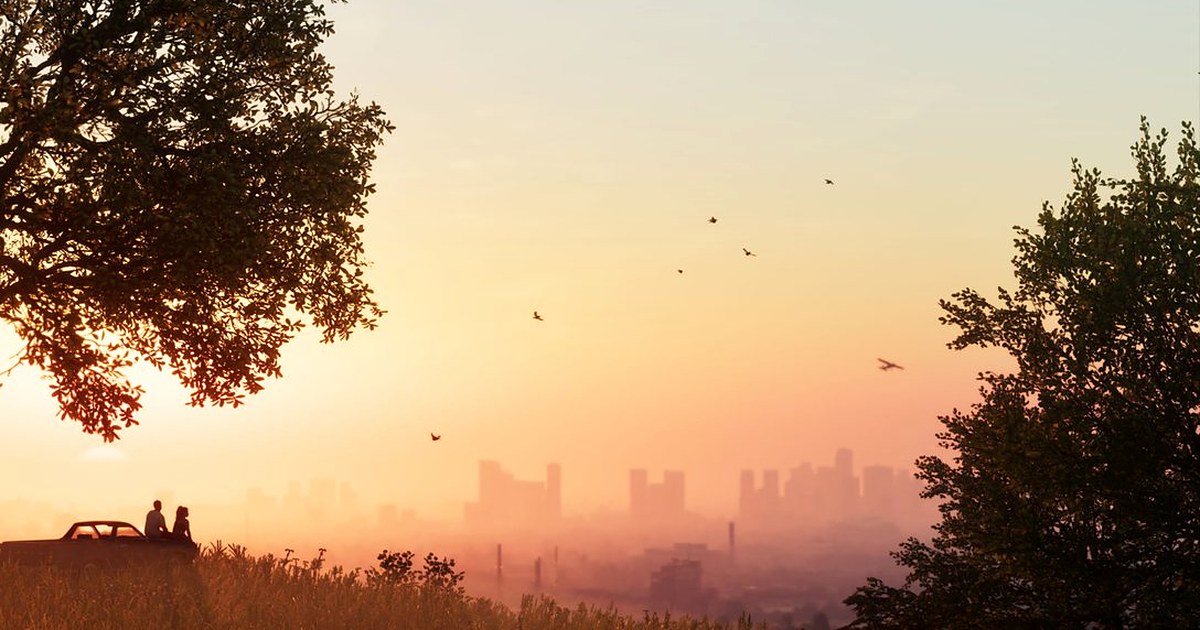
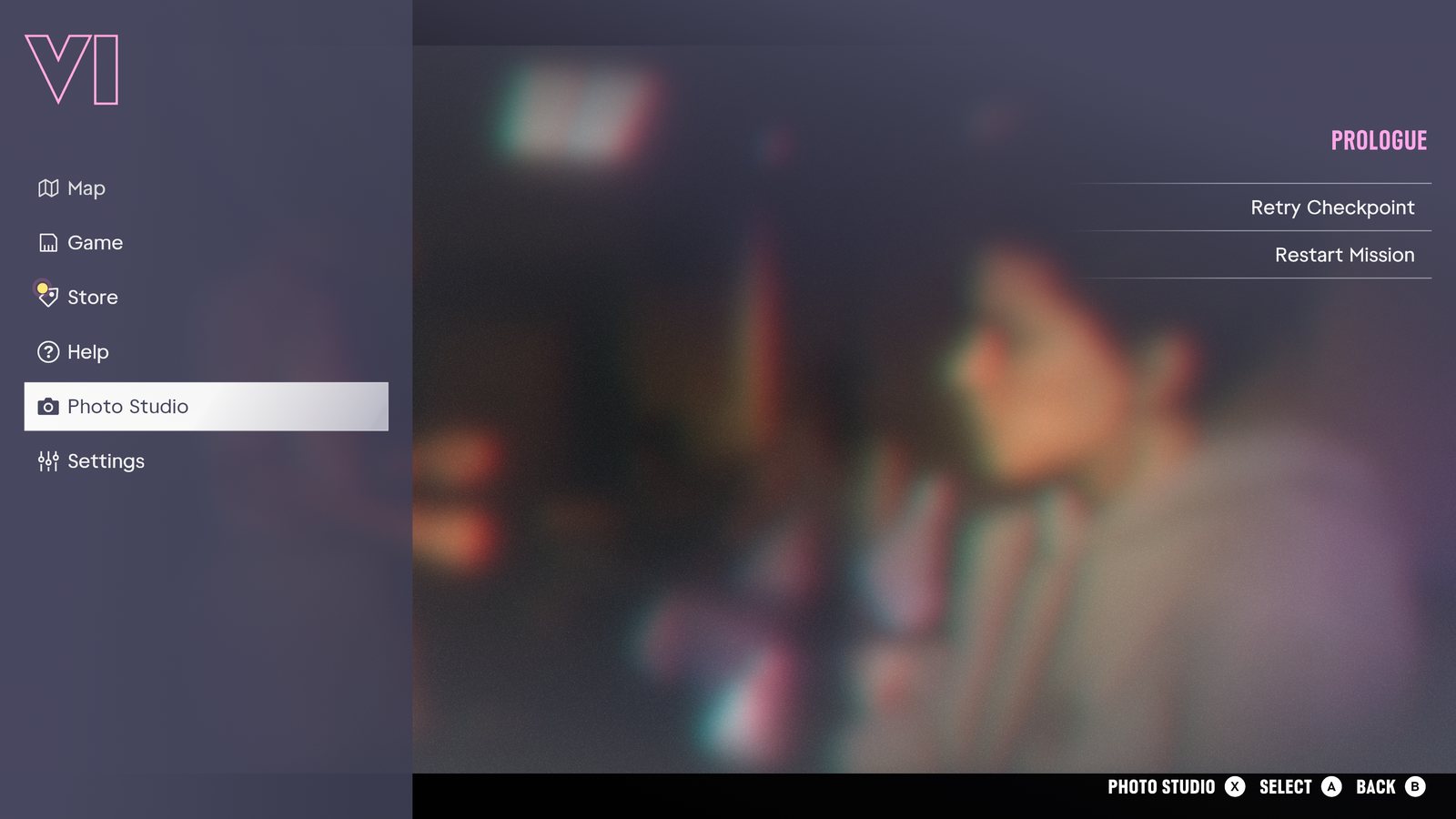
GTA 6 has a photo mode, and it is called Photo Studio. To open it, pause the game (Options on PS5, Menu on Xbox Series X/S) and select the Photo Studio row in the pause menu. There is also a shortcut: with the pause menu open, press Square on PS5 or X on Xbox. You do not need to finish any mission for Photo Studio; it is available from the prologue, the game’s opening section with Lucia. There are plenty of light, filter, focus and color settings, but you cannot change the time of day or the weather. If you want a selfie, you go to the phone’s camera, not Photo Studio.
How to open Photo Studio
- Pause the game: the Options button on PS5, the Menu button on Xbox.
- Scroll down the menu and select Photo Studio, or press Square (PS5) / X (Xbox) directly.
- The camera is free to move around your character; you switch between tabs with L1/R1 (LB/RB on Xbox).
It also opens during cutscenes, but some settings stay locked. A locked setting appears grayed out, and “Currently unavailable” shows in the bottom left of the screen. Photo Studio does not let you pose your character or change their facial expression. The camera also reportedly cannot move very far from the character you control (this is not confirmed yet), so taking your character out of frame to shoot a distant view is limited. There is, however, an option to hide the character from the shot completely.
| Action | PS5 | Xbox Series X/S |
|---|---|---|
| Open Photo Studio (in the pause menu) | Square | X |
| Move the camera | Left stick | Left stick |
| Rotate the angle | Right stick | Right stick |
| Zoom in / out | L2 / R2 | LT / RT |
| Switch tab | L1 / R1 | LB / RB |
| Hide the interface | Triangle | Y |
| Reset the camera | L3 | Press the left stick |
| Reset settings to default | Square | X |
| Save the photo | X (Cross) | A |
| Back | Circle | B |
The in-Photo Studio buttons in the table come from the on-screen button prompts on PS5 and Xbox.
What settings does Photo Studio have?
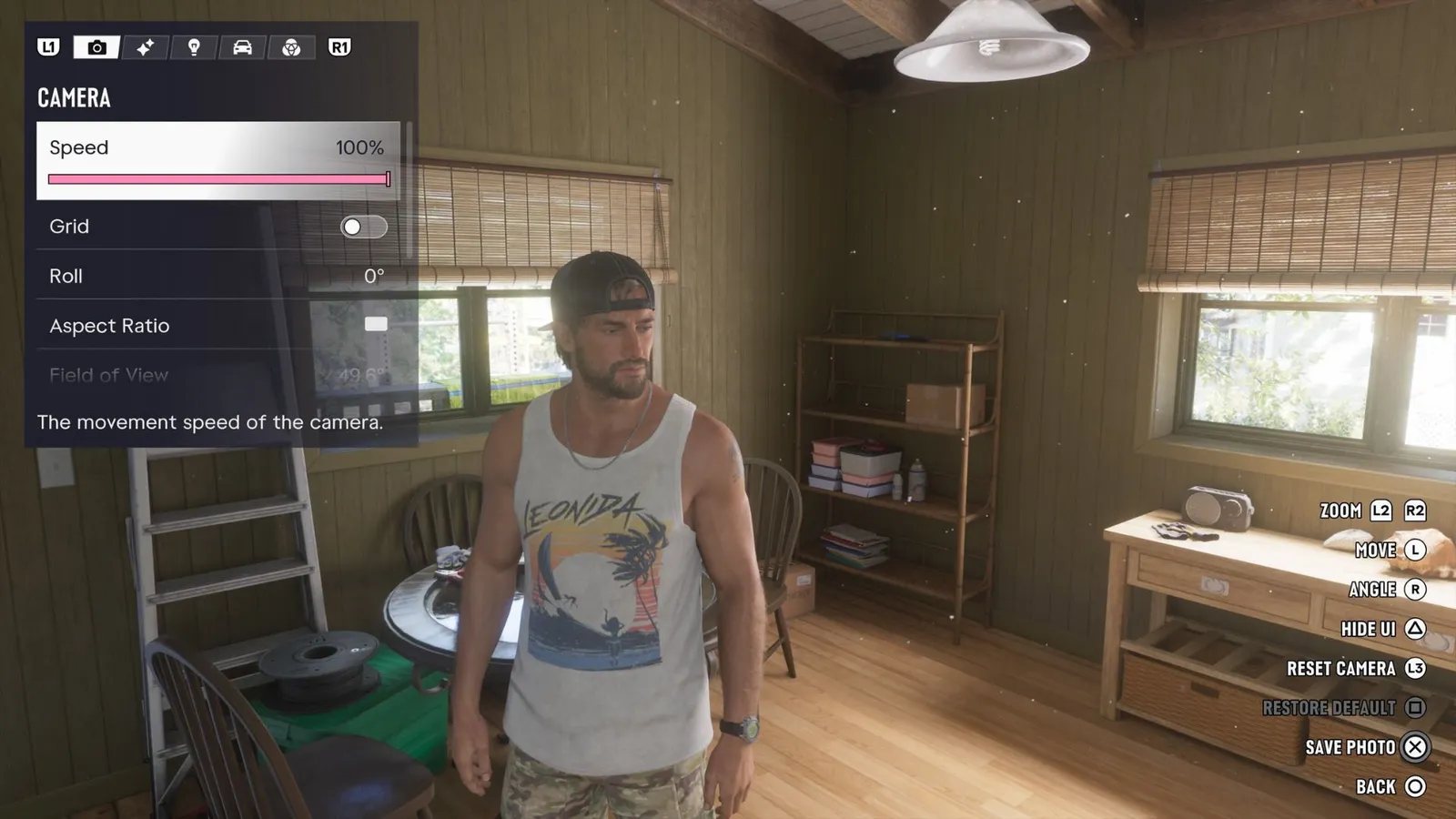
The menu is split into tabs: Camera, Effects, Lighting, Vehicle and Overlays. PS5 screenshots show five tabs; an Xbox screenshot has no vehicle icon and shows four. It is not clear yet whether this is a platform difference or depends on another condition.
| Tab | What you can adjust |
|---|---|
| Camera | Camera speed, grid lines, Roll (horizontal tilt), aspect ratio, Field of View, depth of field, aperture, focus distance, hiding the character |
| Effects | Exposure, contrast, highlights and shadows, saturation, sharpness, grain, color temperature, tint, gamma, lens flare, bloom, chromatic aberration |
| Lighting | Up to five lights; the color, intensity and beam angle of each |
| Vehicle | The vehicle’s headlights, turn signals and other lights |
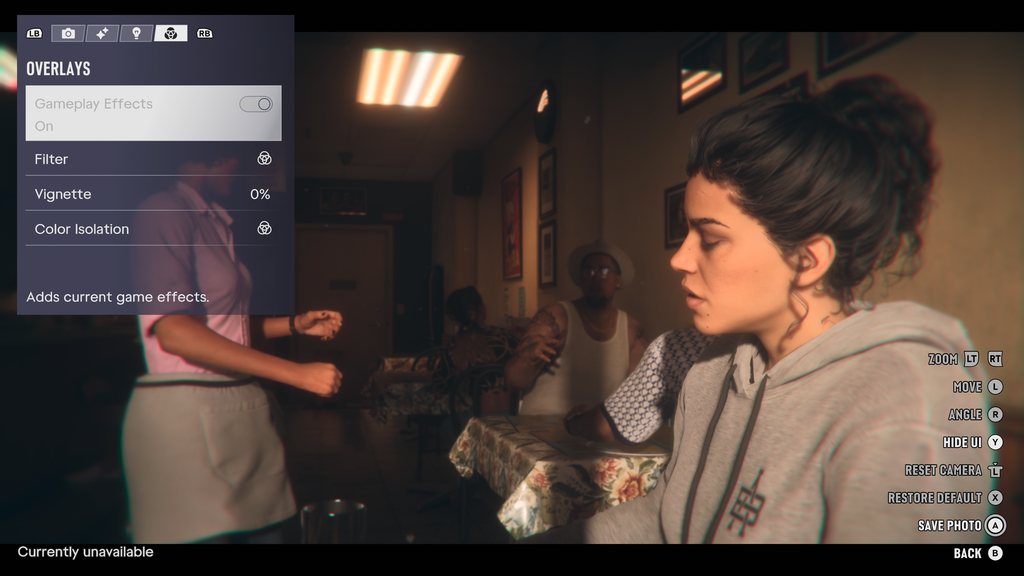
| Overlays | Gameplay effects (e.g. the low health effect), 17 filters, filter strength, vignette, Color Isolation |
The detailed settings list is not fully confirmed yet; part of the Camera and Overlays rows is visible in screenshots.
The most praised part is the lighting. You can add five separate lights to a scene and change the color and intensity of each; the position, size and beam angle of the lights can also be adjusted. Guides name the light types differently: some list floodlight, stage light and ring light, others spot, projector and softbox. There are reportedly 8 aspect ratio options, and a helper called Focus Guide shows with a hologram which part of the image stays in focus; neither detail is confirmed yet.
There are 17 filters. If Gameplay Effects in Overlays is off, on-screen gameplay effects do not appear in the photo; if you turn it on, the effects of that moment (e.g. the injury effect) are added.
Why can’t you change the time or weather?
Photo Studio has no setting for the time of day or the weather. If you want a sunset or rain, you have to wait for that moment in the game. For ways to move the clock forward, see our how to skip time guide.
Where are photos saved?
In Photo Studio, select Save Photo and confirm by holding the button (X on PS5, A on Xbox). Guides differ on where the photo ends up:
- Console gallery: according to some guides, the photo goes to the console’s own gallery, not the in-game phone gallery. On PS5 that is the Media Gallery on the home screen (in your game library if it is not among recently used), on Xbox My Games & Apps > Apps > Captures.
- Phone gallery: others say Save Photo saves the photo inside the game; you find it in the phone’s Gallery app next to the shots you took with the phone. What lands in the console gallery is the frame you capture with the console’s screenshot button.
If you cannot find your photo, check both places. If you definitely want the frame in the console gallery, use this method: hide the interface (Triangle / Y), then press the console’s screenshot button (Create on PS5, Share on Xbox). You can send a photo in the console gallery to a friend with the console’s own sharing tools; you cannot share it on the in-game Snapmatic, though (see below).
How to take a selfie with the phone
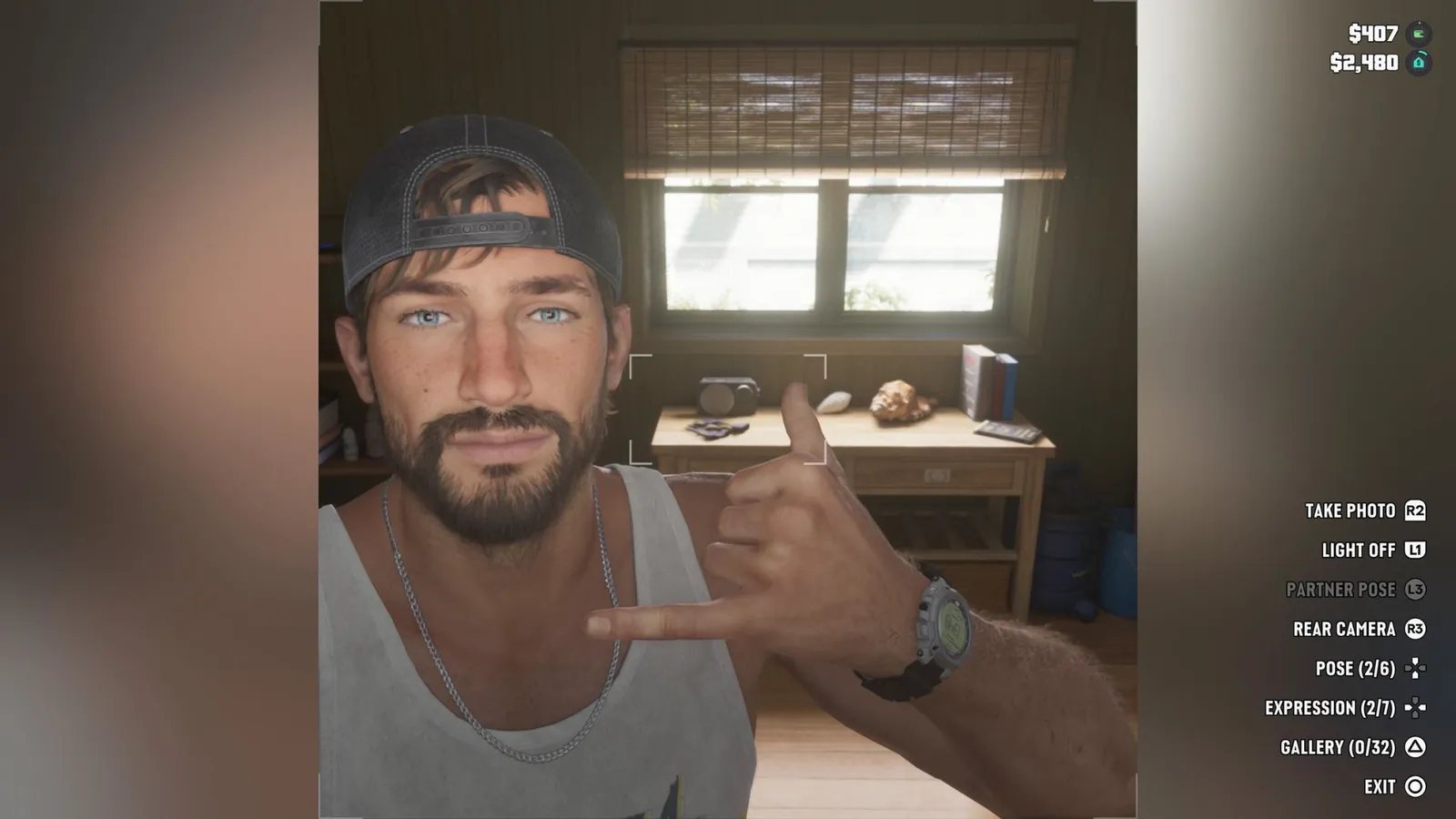
Selfies are taken with the phone’s Camera app, not in Photo Studio. The phone camera unlocks when the prologue ends and you take control of Jason; unlike Photo Studio, it cannot be used during the prologue.
- Open the phone with up on the D-pad.
- Select the Camera app (reportedly the third icon in the first row).
- Switch to the front camera with R3.
- Choose a pose (6 of them) with up/down on the D-pad and a facial expression (7 of them) with left/right on the D-pad.
- If someone is with you, change their pose with L3 (Partner Pose).
- Take the photo with R2. L1 turns the flash on and off, Triangle opens the gallery and Circle exits the camera.
The rear camera has up to 5x zoom, a 3×3 grid and 17 filters. Photos you take with the phone land in the phone’s Gallery app. These pose and expression counts are for Jason; it is not clear yet whether they are the same for Lucia. For the phone’s other apps, see our phone apps guide.
Snapmatic, the in-game social network, is a separate phone app. There you can look at and like other people’s posts, read comments and mark on your map where a photo was taken, but you cannot share your own photos. For details, see our Snapmatic guide.
Does GTA 6 have Director Mode?
No. GTA 6 has no Director Mode like GTA 5’s, where you pick any character and set up a scene anywhere you like; this was clear from launch day. No statement from Rockstar on this has surfaced. As for a video editor like the Rockstar Editor, it is not clear yet whether the game has one; there is no word either way. The tools you have are Photo Studio, the phone camera and the game’s own camera angles. For camera views, see our first-person guide.
Frequently asked questions
Does GTA 6 have a photo mode?
Yes. It is called Photo Studio. It sits in the pause menu, opens directly with Square on PS5 or X on Xbox, and can be used from the start of the game.
Can you change the weather and time in GTA 6 Photo Studio?
No. There are no settings for time or weather. You get the light you want by waiting for that time in the game.
Can you pose your character in Photo Studio?
No, poses and facial expressions do not change in Photo Studio. Poses and expressions are only available with the phone’s front camera: 6 poses and 7 expressions.
Where are GTA 6 photos saved?
Guides differ. Some say the shots you save with Save Photo go to the console’s gallery (Media Gallery on PS5, Captures on Xbox); others say they land in the phone’s Gallery app. Check both. Photos you take with the phone stay in the phone’s Gallery app.
Does GTA 6 have Director Mode?
No, GTA 6 has no Director Mode. Whether there is a video editor like the Rockstar Editor is not clear yet. The tools you have are Photo Studio and the phone camera.
0 Comments
No comments yet.