TBH: Task Bar Hero players have recently encountered a frustrating issue where launching the game causes the rest of the desktop background to turn completely black. While the bug may look like a graphics driver problem at first, the fix is surprisingly simple and only takes a few moments to apply.
Fortunately, players don’t need to reinstall the game or update their hardware drivers. The issue appears to be related to Windows fullscreen optimization settings, which can interfere with how Task Bar Hero renders its desktop overlay.
How to fix the bug?
Step 1: Open the game’s installation folder
- Open your Steam Library.
- Locate TBH: Task Bar Hero.
- Right-click the game.
- Select Manage → Browse Local Files.
This will open the folder where the game’s executable file is stored.
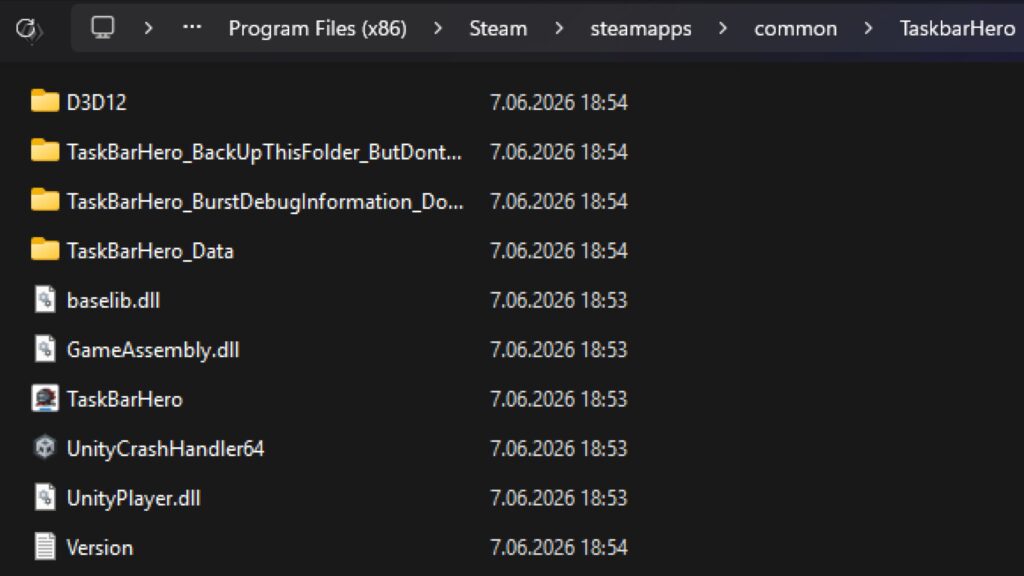
Step 2: Open the executable properties
- Find TaskBarHero.exe.
- Right-click the file.
- Select Properties.
Step 3: Disable fullscreen optimizations
- Open the Compatibility tab.
- Check Disable fullscreen optimizations.
- Click Apply and then OK.
- Optional: Apply the DPI Fix
If the black background still appears:
- Click Change high DPI settings.
- Enable Override high DPI scaling behavior.
- Set scaling to Application.
- Save the changes and relaunch the game.
After applying the fix, launch the game again through Steam. In most cases, the desktop should return to normal and Task Bar Hero will continue running in its intended taskbar-style window without covering the rest of the screen in black.
What causes the black background bug?
What causes the black background bug?
The issue is believed to be related to Windows fullscreen optimization settings conflicting with the game’s rendering behavior.
Do I need to reinstall the game?
No. Most players can resolve the issue by changing compatibility settings on the executable.