When The Sims 1 launched in 2000, it introduced an entirely new genre to the gaming world; the life simulation. Players were no longer warriors or monsters, but ordinary people: building homes, going to work, and falling in love. The Sims 2 expanded that world with genetics, aging, and 3D visuals. The Sims 3 broke boundaries with its open-world design, removing loading screens between neighborhoods. And finally, The Sims 4, released in 2014, carried the franchise into the modern era with advanced AI, emotional states, and mod support.
But the latest entry in the series isn’t limited to the traditional top-down camera view. The game also features a first-person mode (FPS mode) that lets you step directly into your Sim’s perspective. You can explore your home, listen to conversations, walk around, interact with objects, and even see your Sim’s hands while cooking. The Sims 4 transforms from a management simulator into a lived experience.
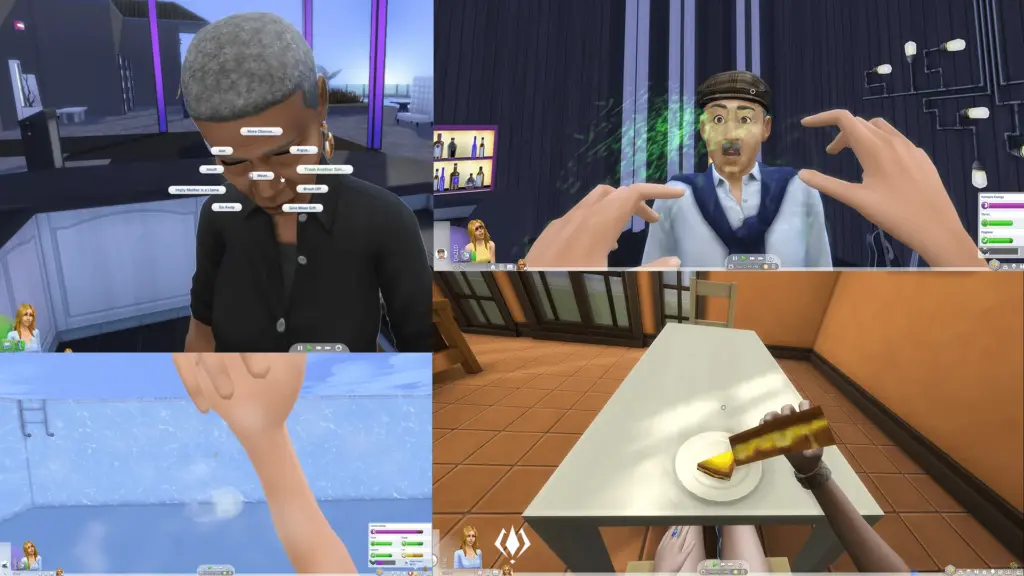
So, how can you enable this immersive first-person view? Here’s how to activate FPS mode depending on your platform:
How to Enable FPS Mode in The Sims 4
| Platform | Key Combination |
| PC | Press Shift + Tab simultaneously |
| PlayStation | Hold R3 |
| Xbox | Hold RS |
Additional Tips:
- Use your mouse or right analog stick to control the camera angle.
- To exit FPS mode, simply use the same key combination again.
- Interacting with objects can sometimes be tricky in this mode, switching back to third-person view will fix that.
This feature turns The Sims 4 into more than a simulation; it becomes a personal, first-hand experience of life through your Sim’s eyes.
Would you enjoy living in the Sims world from your Sim’s perspective, or do you still prefer the classic third-person view? Do not forget to share your thoughts and follow us on our website and X for more Sims guides and gaming tips.